 Photo Retouch




Must - Know! A Comprehensive List of Practical Tips for the Photo Retouch Collage Function
Photo Retouch's collage function is a powerful tool that allows you to create stunning visual compositions from your photos. To help you make the most of this feature, here are some practical tips covering various aspects like layout, proportion, border, background, and shadow.
Layout
The layout is the foundation of a great collage. Photo Retouch offers a wide range of layout options. For a classic look, go for the grid layout. It's simple and works well when you want to display a series of photos of the same importance. If you're feeling more creative, try the free - form layout. This allows you to arrange photos in a more organic way, which is perfect for telling a story or creating a unique visual flow. When using the free - form layout, consider the rule of thirds. Divide your canvas into nine equal parts using two horizontal and two vertical lines. Place the key elements of your photos along these lines or at their intersections for a more balanced and visually appealing composition.

Proportion
Pay attention to the proportion of your photos within the collage. You can resize individual photos to emphasize certain elements or create contrast. For example, if you have a group of small, detailed photos, you might want to make one larger to draw the viewer's eye. Also, make sure the overall proportion of the collage fits the platform where you'll be sharing it. For Instagram, a square or vertical collage often works best, while for a Facebook post, a horizontal layout might be more suitable.
Border
Borders can add a finishing touch to your collage. In Photo Retouch, you can customize the width, color, and style of the border. A thin, white border can give a clean and modern look, while a thick, colored border can make your collage more eye - catching. You can also choose a textured border for a more artistic feel. Use the border to separate different photos and create a sense of unity within the collage.

Background
The background sets the tone for your collage. You can choose a solid color background that matches the theme of your photos. For a more dynamic look, try a gradient background. If you want to add more context, you can use an image as the background. Just make sure it doesn't overpower the main photos in the collage.
Shadow
Adding a shadow to your photos in the collage can give them a sense of depth and dimension. Adjust the intensity, direction, and blur of the shadow to achieve the desired effect. A subtle shadow can make your photos appear to float above the background, creating a more professional and polished look.
By mastering these tips, you'll be able to create amazing collages with Photo Retouch that are sure to impress.
Download


 Windows
 macOS
macOS
Enhance your photos with Photo Retouch's lossless enlargement for clearer, high-quality images.

Master Photo Retouch's AI Removal, background replacement, and stroke features for professional image editing.
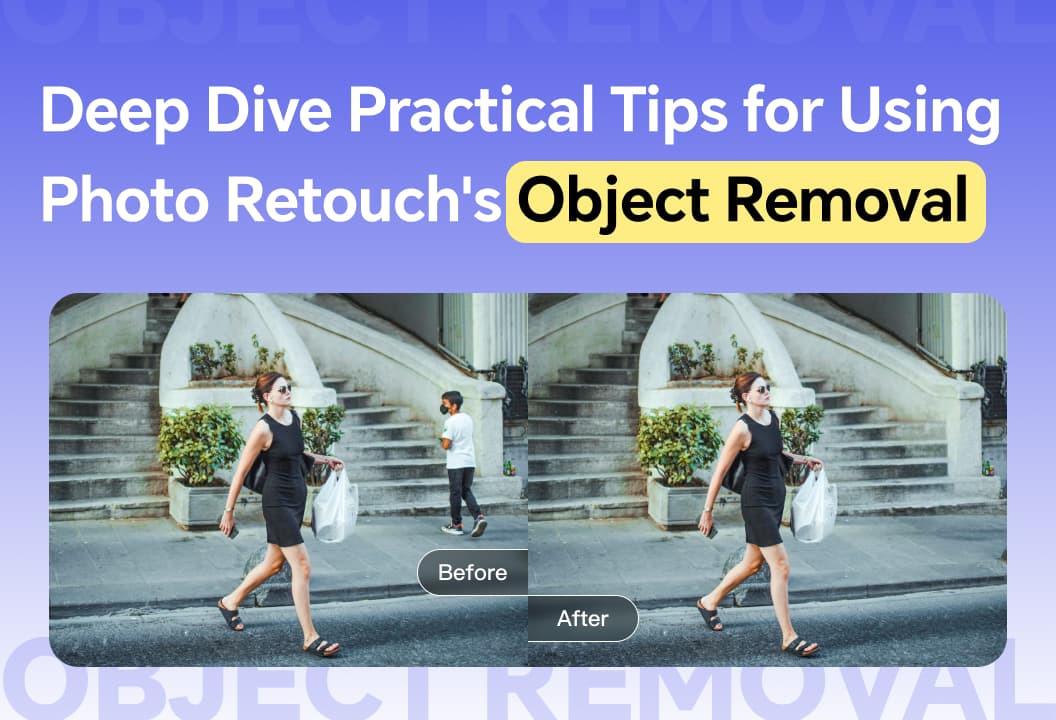
Master Photo Retouch's Object Removal with tips on selection methods, brush sizes, and text removal.
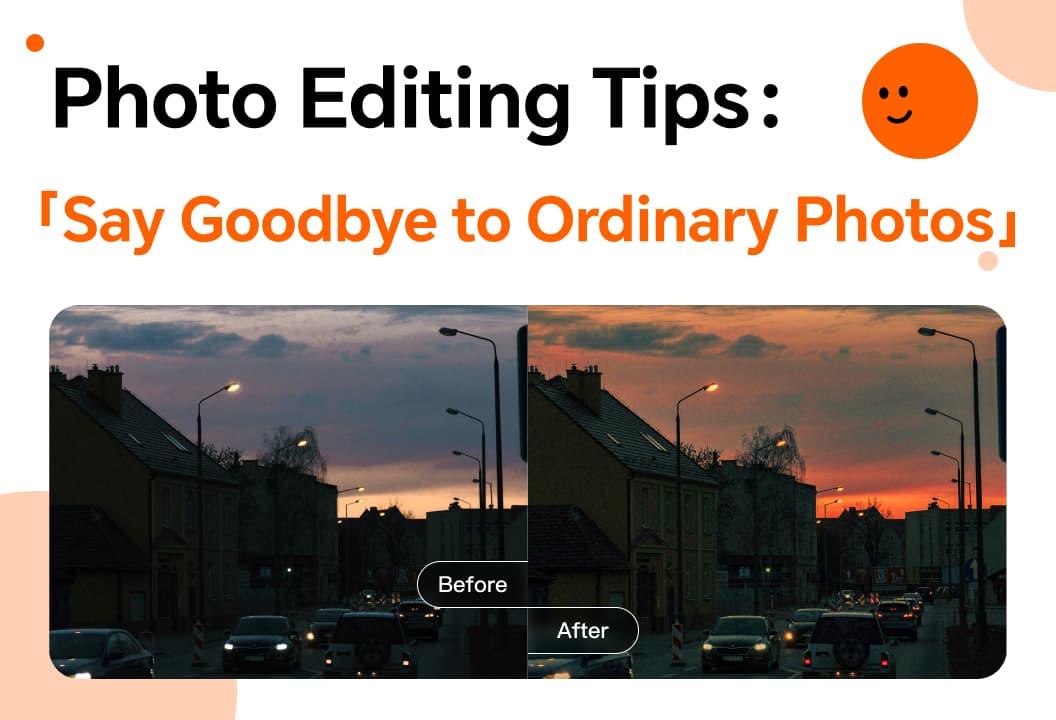
Enhance your photos with color adjustments, smoothing, liquify, stickers, and creative editing techniques.
With Photo Retouch video editing, master filters and other techniques to easily create videos.

Enhance your photos with the vignette function to highlight subjects and reduce distractions creatively.

This article will introduce you to the one-click cutout function.
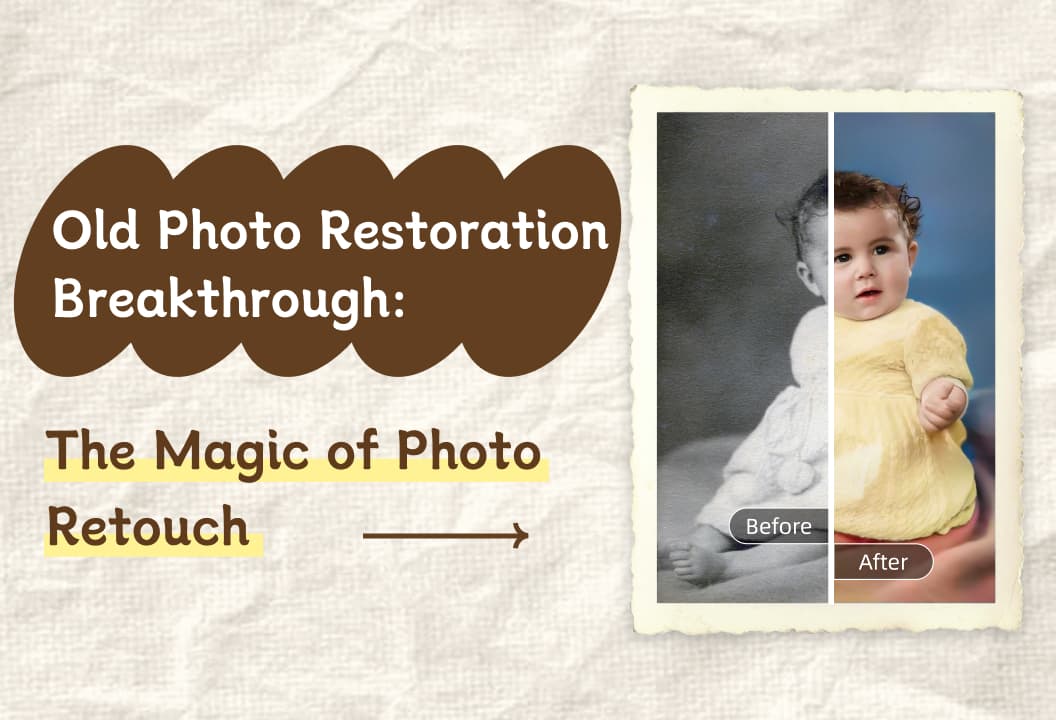
The old photo restoration function can easily restore old photos and awaken ancient memories!

collage feature lets you effortlessly combine, customize, and share photos, creating unique, memorable layouts.

Image Enlargement feature increases photo size without losing detail, enhancing clarity and resolution.
Photo Fix tools offer easy-to-use features for enhancing photos with color adjustments, reshaping, and creative effects.
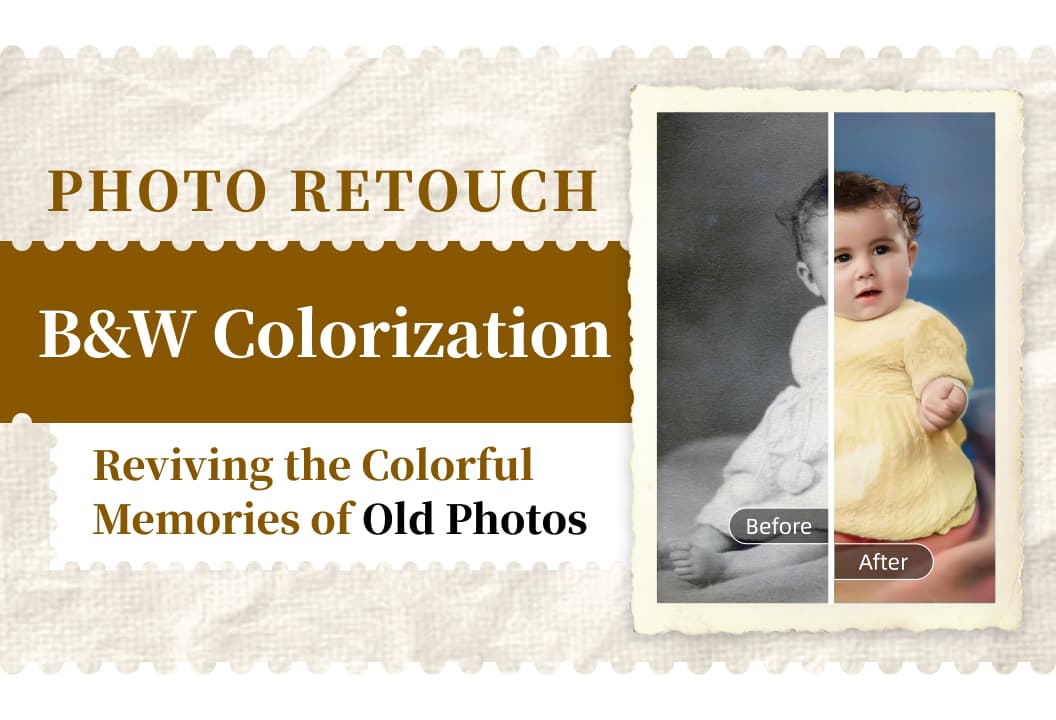
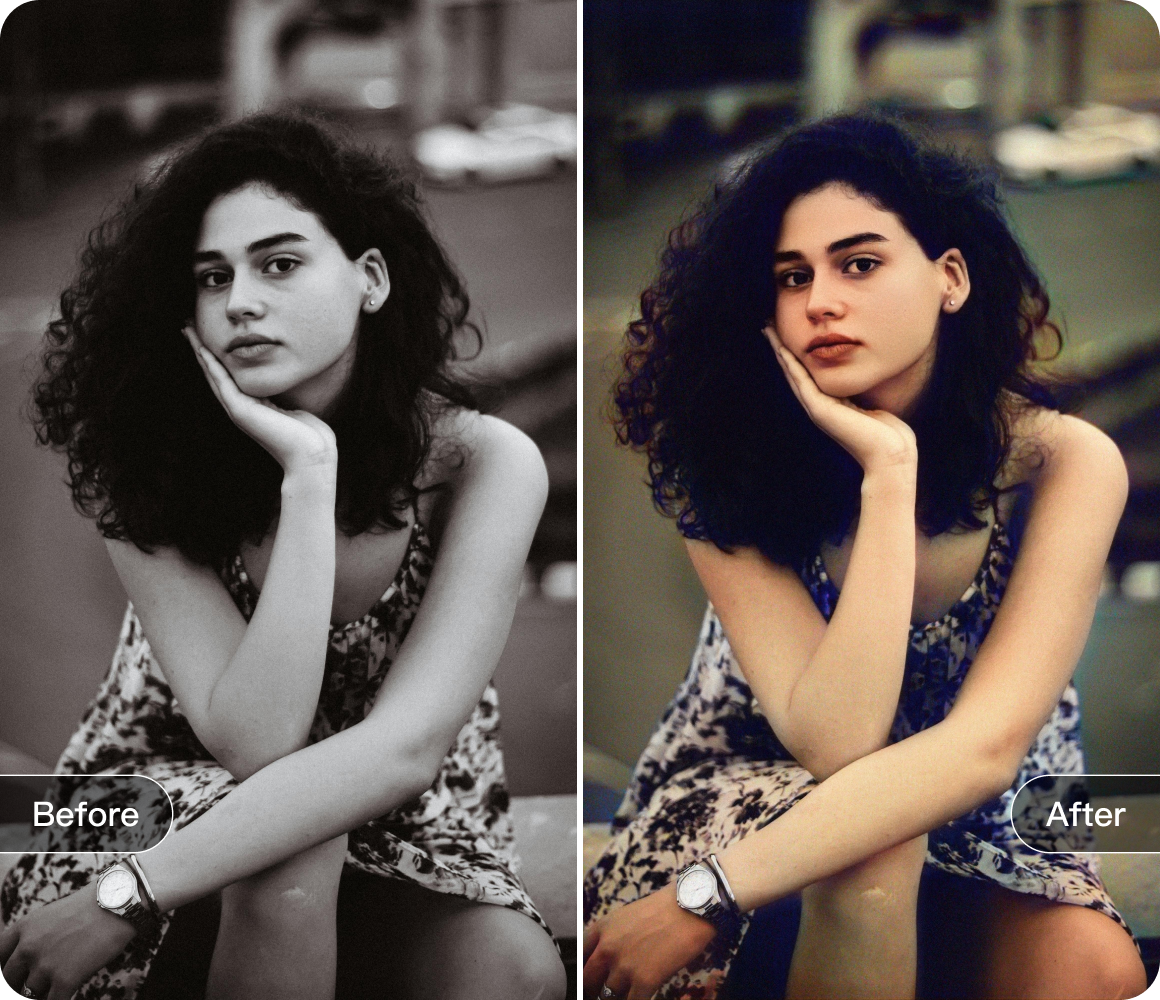
B&W photo coloring feature brings old black-and-white photos to life by adding vibrant colors and emotions.

Fragment Scatter feature adds magical, ethereal fragments to your photos, creating dreamlike, artistic effects.
A quick look at video editing for beginners! Multiple functions to help you create eye-catching videos easily.

Video face pixelation lets you blur faces to protect privacy while enhancing your content creatively.

Video Tracking Removal automatically blurs moving objects or faces, ensuring privacy while enhancing content and adding mystery.

Photo Retouch helps restore old photos with simple steps: backup, import, use one-click restoration.